Financials
Overview
Project financial management involves planning, monitoring, and controlling the financial aspects of a project to ensure that it stays within budget and achieves its objectives. Effective financial management is crucial for the success of a project, as it helps in allocating resources appropriately, controlling costs, and ensuring that the project is financially sustainable.
Altus has a comprehensive financials application that enables project managers to manage all facets of their projects financial position including:
- Budgets: A budget is a financial plan that outlines the expected revenues and expenses for a specific period. It serves as a roadmap for allocating resources and helps in setting financial goals and constraints.
- Forecasts: A forecast is an estimate or prediction of future financial outcomes based on current and historical data. It is often used to project how the actual financial performance might deviate from the budget over time.
- Actuals: Actuals refer to the real, observed financial results or performance that has occurred during a specific period. Actuals provide the factual data on income, expenses, and other financial metrics as opposed to planned or forecasted figures.
Altus Finance grid
The image below shows an example of the finance grid in Altus. This provides a single spot for project managers to manage their project budgets. The subsequent sections below cover each of the numbered items:

Key Features
1. New Items
Project managers can add additional rows to the finance grid using the New button in the top left-hand corner. There are two choices available here:

- Budget: Enables the user to add a new budget line to their project.
- Cost: Enables the user to add either forecasts, actuals, or both to their project.
The Name and Financial Category fields are both mandatory. Users also need to add at least one transaction in order to create a new record.
New Budget form

New Cost form

Generate Bulk Transactions via the Budget/Cost form
Both the Budget and Cost forms enable users to add multiple transactions. The form enables users to do the following:
- Specify a start date
- Specify the number of months
- Specify the end date (specifying this will auto calculate the number of months based on the start date)

Closed Periods
Within the configurations area of Altus, there is a function which enables the Admin user to specify which periods are permissible for transactions to be entered into. Once periods are closed, these will show as 'locked' periods in the calendar picker and won't allow the user to enter transactions within these periods. The screenshot below highlights this behaviour in further detail:

Overlapping Closed Periods
The finance application has error trapping to prevent transactions from being entered over periods with closed dates. If this occurs, the following message will appear in the Generate Transactions dialogue:

2. Change Period
By default, the finance grid will open up on the current month. This is calculated programmatically using the current date to determine the month. However, users can use the Change Period control. The gif below, shows how users can use this to go forward/backwards in time to view their financials.

3. Search
This control enables users to search for any content that they have keyed into the financials grid. This is useful especially for larger projects where there can be many rows of content:

4. Category Filter
In addition to the search function, this control enables a quick filter of items based on the financial category associated with the item. This can be done by selecting from the available options which will then return only the matching rows:

5. Data drop-down
The data drop-down contains the following options:

- Export to CSV: Enables the user to export all financial information from the grid into Excel format.
- Import Resource Forecasts: Enables the user to import and convert all resource plan information and use the cost rates to create forecast items.
- Import Timesheet Actuals: Enables the user to import timesheet actuals (similar to the resource import function).
Note: if you have forecasts or actuals to import an alert will show on the screen and the menu item will show with a red circle next to it.
Export to Excel
This feature enables users to export all data from the finance application to Excel for ad-hoc analysis and reporting.
Import Timesheet Actuals
This feature enables users to import timesheet actuals into the finance application. Approved timesheet hours are multiplied by the resource cost rate to determine the total cost
Once imported, new financial transactions will be created to add actuals to the project's financials. If the approved values from the timesheets change you will be prompted to import the changes which could mean adding or removing Actual values from the project.
For more information on how to setup this feature please see here.
Resource Plan to Financial Forecast
This feature enables users to import forecast data from the Resources Plan into the finance application. Saved Proposed or Committed hours (depending on your organisation's settings) are multiplied by the resource cost rate to determine the total cost:
Once imported, new financial transactions will be created to add forecasts to the project's financials. If values within the Resource Plan change, you will be prompted to import the changes which could mean adding or removing forecast values from the project.
For more information on how to setup this feature please see here.
6. View drop-down
The view drop-down contains the following options:

- Period: Changes the granularity of the timeline (default is Month).
- Show/Hide: Enables the user to choose what content they wish to see in the finance grid (default is for all content to be shown).
- Grouping: Currently enables the user to toggle on/off grouping by Category. Default is for no grouping to be selected.
- Horizontal Mode: Changes the finance grid to show the Type (Budget, Forecast, Actuals) to be columns instead of rows.
Period Granularity
The gif below shows how users can change periods to set the granularity to enter financial information:

Show/Hide content
The gif below shows how users can show/hide content in the finance grid:

Grouping
The gif below shows how users can group content in the finance grid:

Additional Column Grouping
In additional to the Category field, the financial grid can be configured to include additional custom columns.
Note
These columns don't appear OOTB and require configuration.

Horizontal Mode
The gif below shows how users can change how data is served up in the finance grid:

7. More drop-down
The More drop-down contains the following options:

- Refresh: Refreshes the data in the finance grid.
- Full Screen Mode: Pops the finance grid out into a focussed, full screens mode.

8. Actions
This control can be used to open up existing items in edit mode.

9. Enter data into the grid
The grid area offers an 'excel like' experience to input and edit data.

Columns
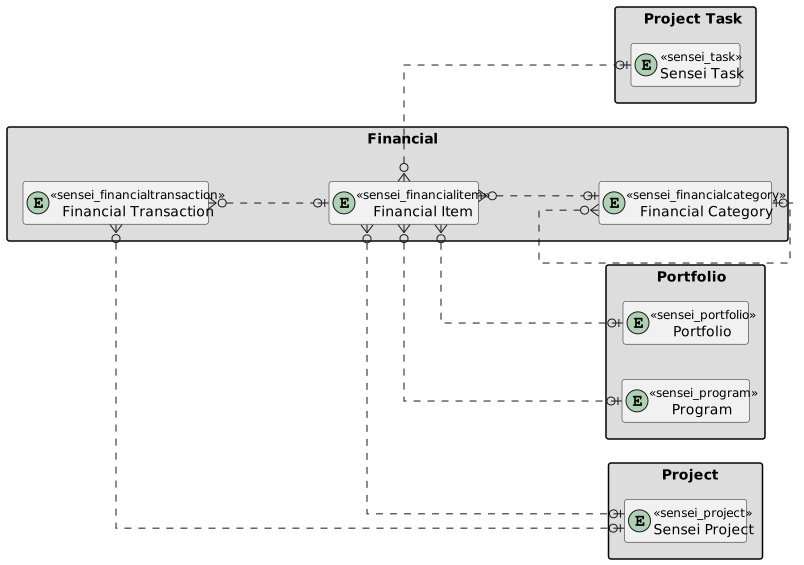
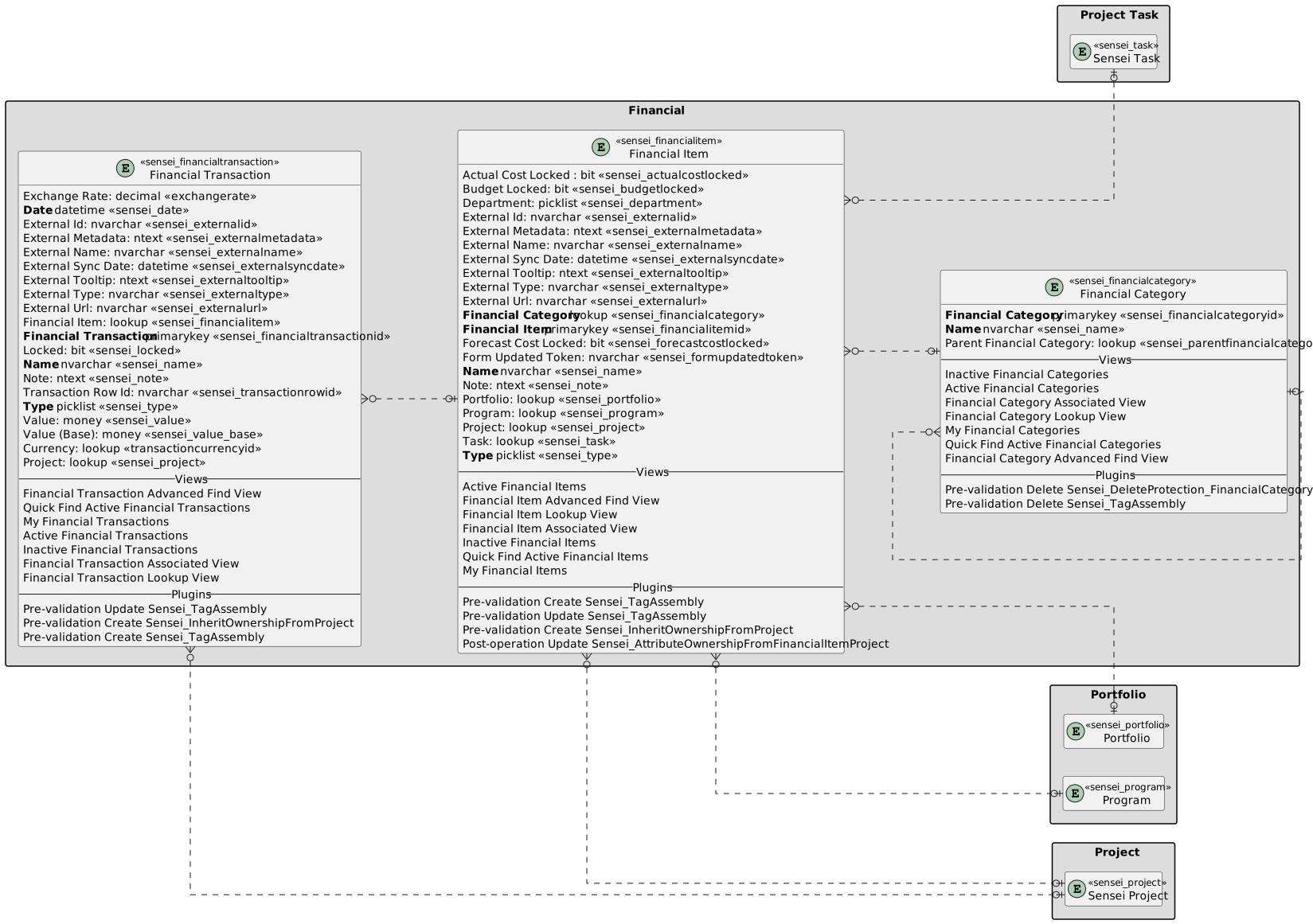
The following columns exists for Financials in Altus. These are captured in three entities:
| Table | Details |
|---|---|
| Financial Categories | Contains the items which group together financial items for tracking and reporting purposes. |
| Financial Items | Contains the financial category, project, and other information about the item including whether it is a forecast, budget, or actual. |
| Financial Transactions | Contains the data and cost information related to the financial item. |
Financial Categories
The following columns exists in Altus.
Columns prefixed with sensei_ are those that form part of the Altus solution.
The remaining are default dataverse fields created automatically.
| Property | Value |
|---|---|
| Display Name | Financial Category |
| Name | sensei_financialcategory |
| Primary Column | Name |
| Description |
| Display Name | Name | Data type | Field Length | Customizable | Required | Searchable |
|---|---|---|---|---|---|---|
| Created By | CreatedBy |
Lookup | True | False | False | |
| Created By (Delegate) | CreatedOnBehalfBy |
Lookup | True | False | False | |
| Created On | CreatedOn |
Date and Time | Date and Time | True | False | False |
| Financial Category | sensei_financialcategoryId |
Primary Key | True | False | False | |
| Import Sequence Number | ImportSequenceNumber |
Whole number | True | False | False | |
| Modified By | ModifiedBy |
Lookup | True | False | False | |
| Modified By (Delegate) | ModifiedOnBehalfBy |
Lookup | True | False | False | |
| Modified On | ModifiedOn |
Date and Time | Date and Time | True | False | False |
| Name (Primary name column) | sensei_name |
Single line of text | 500 | True | True | True |
| Owner | OwnerId |
Owner | True | False | False | |
| Owning Business Unit | OwningBusinessUnit |
Lookup | True | False | False | |
| Owning Team | OwningTeam |
Lookup | True | False | False | |
| Owning User | OwningUser |
Lookup | True | False | False | |
| Parent Financial Category | sensei_parentfinancialcategory |
Lookup | True | False | False | |
| Record Created On | OverriddenCreatedOn |
Date and Time | Date Only | True | False | False |
| Status | statecode |
Choice | True | False | False | |
| Status Reason | statuscode |
Choice | True | False | False | |
| Time Zone Rule Version Number | TimeZoneRuleVersionNumber |
Whole number | -1 to 2147483647 | True | False | False |
| UTC Conversion Time Zone Code | UTCConversionTimeZoneCode |
Whole number | -1 to 2147483647 | True | False | False |
Financial Items
The following columns exists in Altus.
Columns prefixed with sensei_ are those that form part of the Altus solution.
The remaining are default dataverse fields created automatically.
| Property | Value |
|---|---|
| Display Name | Financial Item |
| Name | sensei_financialitem |
| Primary Column | Name |
| Description |
| Display Name | Name | Data type | Field Length | Customizable | Required | Searchable |
|---|---|---|---|---|---|---|
| Actual Cost Locked | sensei_actualcostlocked |
Yes/No | True | False | False | |
| Budget Locked | sensei_budgetlocked |
Yes/No | True | False | False | |
| Created By | CreatedBy |
Lookup | True | False | False | |
| Created By (Delegate) | CreatedOnBehalfBy |
Lookup | True | False | False | |
| Created On | CreatedOn |
Date and Time | Date and Time | True | False | False |
| Department | sensei_department |
picklist | True | False | False | |
| External Id | sensei_externalid |
Single line of text | 100 | True | False | False |
| External Metadata | sensei_externalmetadata |
Multiple lines of text | 1048576 | True | False | False |
| External Name | sensei_externalname |
Single line of text | 200 | True | False | False |
| External Sync Date | sensei_externalsyncdate |
Date and Time | Date and Time | True | False | False |
| External Tooltip | sensei_externaltooltip |
Multiple lines of text | 1048576 | True | False | False |
| External Type | sensei_externaltype |
Single line of text | 100 | True | False | False |
| External Url | sensei_externalurl |
Single line of text | 2000 | True | False | False |
| Financial Category | sensei_financialcategory |
Lookup | True | True | False | |
| Financial Item | sensei_financialitemId |
Primary Key | True | False | False | |
| Forecast Cost Locked | sensei_forecastcostlocked |
Yes/No | True | False | False | |
| Form Updated Token | sensei_formupdatedtoken |
Single line of text | 100 | True | False | False |
| Import Sequence Number | ImportSequenceNumber |
Whole number | True | False | False | |
| Modified By | ModifiedBy |
Lookup | True | False | False | |
| Modified By (Delegate) | ModifiedOnBehalfBy |
Lookup | True | False | False | |
| Modified On | ModifiedOn |
Date and Time | Date and Time | True | False | False |
| Name (Primary name column) | sensei_name |
Single line of text | 500 | True | True | True |
| Note | sensei_note |
Multiple lines of text | 2000 | True | False | False |
| Owner | OwnerId |
Owner | True | False | False | |
| Owning Business Unit | OwningBusinessUnit |
Lookup | True | False | False | |
| Owning Team | OwningTeam |
Lookup | True | False | False | |
| Owning User | OwningUser |
Lookup | True | False | False | |
| Portfolio | sensei_portfolio |
Lookup | True | False | False | |
| Program | sensei_program |
Lookup | True | False | False | |
| Project | sensei_project |
Lookup | True | False | False | |
| Record Created On | OverriddenCreatedOn |
Date and Time | Date Only | True | False | False |
| Status | statecode |
Choice | True | False | False | |
| Status Reason | statuscode |
Choice | True | False | False | |
| Task | sensei_task |
Lookup | True | False | False | |
| Time Zone Rule Version Number | TimeZoneRuleVersionNumber |
Whole number | -1 to 2147483647 | True | False | False |
| Type | sensei_type |
picklist | True | True | False | |
| UTC Conversion Time Zone Code | UTCConversionTimeZoneCode |
Whole number | -1 to 2147483647 | True | False | False |
Department (sensei_department)
| Value | Label | Description |
|---|---|---|
955000003 |
Finance | |
955000004 |
HR | |
955000005 |
Marketing | |
955000002 |
IT | |
955000006 |
Operations | |
955000000 |
Sales | |
955000001 |
Corporate |
Financial Item Type (sensei_type)
| Value | Label | Description |
|---|---|---|
955000000 |
Budget | |
955000001 |
Cost |
Financial Transactions
The following columns exists in Altus.
Columns prefixed with sensei_ are those that form part of the Altus solution.
The remaining are default dataverse fields created automatically.
| Property | Value |
|---|---|
| Display Name | Financial Transaction |
| Name | sensei_financialtransaction |
| Primary Column | Name |
| Description |
| Display Name | Name | Data type | Field Length | Customizable | Required | Searchable |
|---|---|---|---|---|---|---|
| Created By | CreatedBy |
Lookup | True | False | False | |
| Created By (Delegate) | CreatedOnBehalfBy |
Lookup | True | False | False | |
| Created On | CreatedOn |
Date and Time | Date and Time | True | False | False |
| Currency | TransactionCurrencyId |
Lookup | True | False | False | |
| Date | sensei_date |
Date and Time | Date Only | True | True | True |
| Exchange Rate | ExchangeRate |
Decimal | True | False | False | |
| External Id | sensei_externalid |
Single line of text | 100 | True | False | False |
| External Metadata | sensei_externalmetadata |
Multiple lines of text | 1048576 | True | False | False |
| External Name | sensei_externalname |
Single line of text | 200 | True | False | False |
| External Sync Date | sensei_externalsyncdate |
Date and Time | Date and Time | True | False | False |
| External Tooltip | sensei_externaltooltip |
Multiple lines of text | 1048576 | True | False | False |
| External Type | sensei_externaltype |
Single line of text | 100 | True | False | False |
| External Url | sensei_externalurl |
Single line of text | 2000 | True | False | False |
| Financial Item | sensei_financialitem |
Lookup | True | False | False | |
| Financial Transaction | sensei_financialtransactionId |
Primary Key | True | False | False | |
| Import Sequence Number | ImportSequenceNumber |
Whole number | True | False | False | |
| Locked | sensei_locked |
Yes/No | True | False | False | |
| Modified By | ModifiedBy |
Lookup | True | False | False | |
| Modified By (Delegate) | ModifiedOnBehalfBy |
Lookup | True | False | False | |
| Modified On | ModifiedOn |
Date and Time | Date and Time | True | False | False |
| Name (Primary name column) | sensei_name |
Single line of text | 100 | True | True | True |
| Note | sensei_note |
Multiple lines of text | 2000 | True | False | False |
| Owner | OwnerId |
Owner | True | False | False | |
| Owning Business Unit | OwningBusinessUnit |
Lookup | True | False | False | |
| Owning Team | OwningTeam |
Lookup | True | False | False | |
| Owning User | OwningUser |
Lookup | True | False | False | |
| Record Created On | OverriddenCreatedOn |
Date and Time | Date Only | True | False | False |
| Status | statecode |
Choice | True | False | False | |
| Status Reason | statuscode |
Choice | True | False | False | |
| Time Zone Rule Version Number | TimeZoneRuleVersionNumber |
Whole number | -1 to 2147483647 | True | False | False |
| Transaction Row Id | sensei_transactionrowid |
Single line of text | 100 | True | False | False |
| Type | sensei_type |
picklist | True | True | False | |
| UTC Conversion Time Zone Code | UTCConversionTimeZoneCode |
Whole number | -1 to 2147483647 | True | False | False |
| Value | sensei_value |
Currency | True | False | False | |
| Value (Base) | sensei_value_Base |
Currency | True | False | False |
Transaction Type (sensei_transactiontype)
| Value | Label | Description |
|---|---|---|
955000000 |
Budget | |
955000001 |
Forecast | |
955000002 |
Actual |
External Sync Columns
The following columns exist for use by Altus sync engines (Resource to Finance Sync and Timesheet to Finance Sync) but can also be utilised for custom sync purposes where required. If using these fields, please ensure that Altus sync values are never overwritten and that the External Type field is unique.
Financial Item
| Field Name | Description |
|---|---|
| sensei_externalid | Used to reference the parent id of the item that the sync relates to. For Financial Items created by Resource to Finance Sync, this field will be populated with the Resource Request Id. For Financial Items created by Timesheet to Finance Sync, this field will be populated with the Bookable Resource Id. |
| sensei_externaltype | Used to identify the unique name of the sync activity that created this Financial Item. This field should be populated with 'IQ Resource to Finance Sync' (if the item was created by Resource to Finance Sync) or 'IQ Timesheet to Finance Sync' (if the item was created by Timesheet to Finance Sync). |
| sensei_externalsyncdate | Timestamp of when the sync activity occurred to create or update this item. |
| sensei_externalname | Not currently in use. |
| sensei_externaltooltip | Not currently in use. |
| sensei_externalurl | Not currently in use. |
| sensei_externalmetadata | Not currently in use. |
Financial Transaction
| Field Name | Description |
|---|---|
| sensei_externalid | Used to reference the parent id of the transaction that the sync relates to. For Financial Transactions created by Resource to Finance Sync, this field will be populated with the Resource Request Id. For Financial Transactions created by Timesheet to Finance Sync, this field will be populated with the Bookable Resource Id. |
| sensei_externaltype | Used to identify the unique name of the sync activity that created this Financial Transaction. This field should be populated with 'IQ Resource to Finance Sync' (if the transaction was created by Resource to Finance Sync) or 'IQ Timesheet to Finance Sync' (if the transaction was created by Timesheet to Finance Sync). |
| sensei_externalsyncdate | Timestamp of when the sync activity occurred to create or update this transaction. |
| sensei_externalname | Not currently in use. |
| sensei_externaltooltip | Gets populated with a HTML string with a breakdown/summary of the sync calculations used in determining the value of this transaction. This tooltip gets rendered by the Finance Grid. |
| sensei_externalurl | Not currently in use. |
| sensei_externalmetadata | This field is populated with a JSON string representing key data used by the sync activity. For Altus sync activities the properties can include; calculationMode: Tracks the Resource to Finance sync calculation mode as per the value in the configuration setting at the time the sync occurred. timesheetSyncSourceId: Gets populated with the Bookable Resource Id that the timesheet transaction relates to. zoom: Indicates whether the transaction has been created at the month level or fiscal period level (related to Resource to Finance Sync). |
Security Roles
Security Roles for Financial Categories
| Security Role | Create | Read | Write | Delete | Append | Append To | Assign | Share |
|---|---|---|---|---|---|---|---|---|
| Altus - PMO User |  |
 |
|
|
|
|
|
|
| Altus - Portfolio Manager |  |
|
|
|
|
|
|
|
| Altus - Portfolio Manager - Team | |
|
|
|
|
|
|
|
| Altus - Program Manager | |
|
|
|
|
|
|
|
| Altus - Program Manager - Team | |
|
|
|
|
|
|
|
| Altus - Strategy Executive |  |
|
|
|
|
|
|
|
| Altus Admin User | |
|
|
|
|
|
|
|
| Altus Portfolio User | |
|
|
|
|
|
|
|
| Altus Project Executive | |
|
|
|
|
|
|
|
| Altus Project User | |
|
|
|
|
|
|
|
| Altus Strategy User | |
|
|
|
|
|
|
|
Legend
 Organisation / Global
 Business Unit / Local
 User / Basic
 None
None
For details see Application Security.
Security Roles for Financial Items
| Security Role | Create | Read | Write | Delete | Append | Append To | Assign | Share |
|---|---|---|---|---|---|---|---|---|
| Altus - PMO User | |
|
|
|
|
|
|
|
| Altus - Portfolio Manager | |
|
|
|
|
|
|
|
| Altus - Portfolio Manager - Team | |
|
|
|
|
|
|
|
| Altus - Program Manager | |
|
|
|
|
|
|
|
| Altus - Program Manager - Team | |
|
|
|
|
|
|
|
| Altus - Strategy Executive | |
|
|
|
|
|
|
|
| Altus Admin User | |
|
|
|
|
|
|
|
| Altus Portfolio User | |
|
|
|
|
|
|
|
| Altus Project Executive | |
|
|
|
|
|
|
|
| Altus Project User | |
|
|
|
|
|
|
|
| Altus Strategy User | |
|
|
|
|
|
|
|
Legend
- Organisation / Global
- Business Unit / Local
- User / Basic
- None
For details see Application Security.
Security Roles for Financial Transactions
| Security Role | Create | Read | Write | Delete | Append | Append To | Assign | Share |
|---|---|---|---|---|---|---|---|---|
| Altus - PMO User | |
|
|
|
|
|
|
|
| Altus - Portfolio Manager | |
|
|
|
|
|
|
|
| Altus - Portfolio Manager - Team | |
|
|
|
|
|
|
|
| Altus - Program Manager | |
|
|
|
|
|
|
|
| Altus - Program Manager - Team | |
|
|
|
|
|
|
|
| Altus - Strategy Executive | |
|
|
|
|
|
|
|
| Altus Admin User | |
|
|
|
|
|
|
|
| Altus Portfolio User | |
|
|
|
|
|
|
|
| Altus Project Executive | |
|
|
|
|
|
|
|
| Altus Project User | |
|
|
|
|
|
|
|
| Altus Strategy User | |
|
|
|
|
|
|
|
Legend
- Organisation / Global
- Business Unit / Local
- User / Basic
- None
For details see Application Security.
Dataverse Tables
| Financial | Financial with fields |
|---|
---