Resource Demand
Overview
The resource demand module is the mechanism by which resources are allocated to both proposals and projects. It has the following key features:

- Add Request
- Hours dropdown
- Select Period
- Search
- Data dropdown
- View dropdown
- More dropdown
- Actions
Add Request
Resource Manager can add single or multiple resources directly to a project without needing for it to be added via Resource Plan prior.

Hours dropdown

The resource grid displays data in Hours by default. However, you can select from several input modes:
Days: Enter effort in calendar days. The system automatically converts days to hours using the default calendar (e.g., 8 hours/day → 10 days = 80 hours). This mode is ideal for planners who prefer to allocate resources by days rather than hours. Row and column totals will display the total hours (not averaged like FTEs), and overall totals will be suffixed with "Days". Precision is accepted as per settings, and values are stored in hours. Granularity matches the pattern for hours (scheduled or capacity days/workdays depending on resource type).
FTEs: Converts the entered hours to a proportion of Full Time Equivalent (FTE) based on the default calendar. For example, if a full-time resource works 8 hours per day, 40 hours per week, then 20 hours would be shown as 0.5 FTE. This mode is useful for high-level planning and comparing resource allocations across projects or periods. Note: FTE totals are averaged, not summed, to reflect proportional allocation.
Capacity (%): Converts the entered hours to a percentage of the resource's available capacity for the period, based on their calendar and working pattern. For example, if a resource is available for 40 hours in a week and is allocated 20 hours, this will show as 50%. This mode helps visualize how much of a resource's time is committed versus available, supporting capacity management and avoiding over-allocation. Note: Totals are not available in Capacity (%) mode because each cell and row may be based on a different capacity value, so summing or averaging would not be meaningful.
Period
By default the resource plan will default to show the current month and the next two months. The user can use the period control to change the months shown in the grid:

Search
This control enables the user the ability to search for any of the names, primary roles or other text based content in the grid:

Data dropdown

The data dropdown provides the user with the following additional options:
- Export to Excel: This content of the resource plan can be exported to excel for further analysis.
View dropdown
The view dropdown provides the user with the following additional options:

- Period: This changes the granularity of data in the grid. Default is monthly but this can be changed as required (Year, Month, Week, and Day).
- Show/Hide: This enables the user to show/hide the columns and rows in the grid as required. Default is for all of these to be on except for "Full Column Heading".
- Filter Requests: Enables the user to filter to only see certain types of request (e.g., Unfulfilled Requests Only).
- Grouping: Enables the grid data to be grouped by Primary Role. By default, no grouping is selected.
Period Granularity
The period option in the view menu enables the user to specify the level of granularity which they wish to view resource plan data for. This option enables:
- Day
- Week
- Month
- Calendar Year
- Fiscal Year.

More dropdown
The more dropdown provides the user with the following additional options:

- Refresh: Enables the data in the grid to be refreshed. This can be useful if some requests have been approved and the project manager is still looking at stale data.
- Full Screen Mode: Pops out the resource plan to take up full screen. This makes it easier to see more periods of data.
- Expand All: Enables the user to easily see all resource demand data without opening up each project/proposal individually.
- Collapse All: Enables the user to collapse all resource demand data back to the project/proposal level without doing this for each project/proposal individually.
Action Ellipsis

Each row in the grid has an ellipsis next to it. This is where the following further actions can be undertaken:
- Open Resource: Enables the user to open the bookable resource record for the selected resource.
- Open Details: Opens up the request details.
- Add Fulfilment Resource: Enables the resource manager to provide a named resource (where a generic resource request has been submitted).
Columns
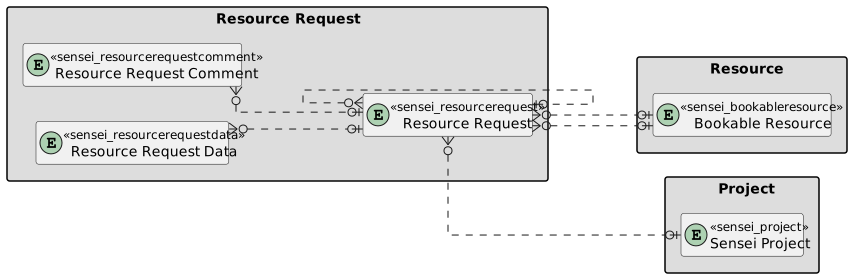
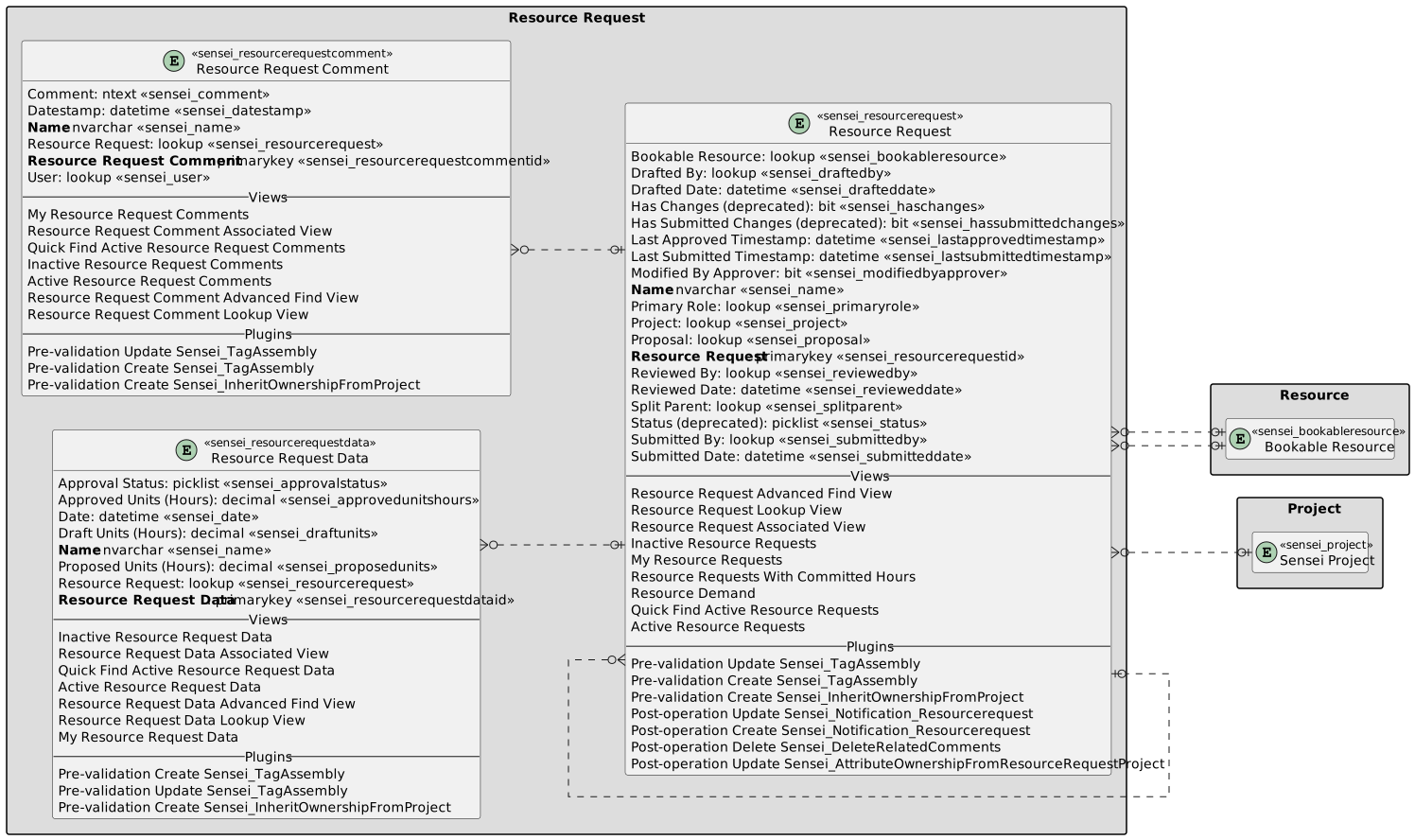
The following columns exists for Resource Demand in Altus. These are captured in four entities:
- Resource Request
- Resource Request Data
- Resource Request Comment
Resource Request
The following columns exists in Altus.
Columns prefixed with sensei_ are those that form part of the Altus solution.
The remaining are default dataverse fields created automatically.
| Property | Value |
|---|---|
| Display Name | Resource Request |
| Name | sensei_resourcerequest |
| Primary Column | Name |
| Description |
| Display Name | Name | Data type | Field Length | Customizable | Required | Searchable |
|---|---|---|---|---|---|---|
| Bookable Resource | sensei_bookableresource |
Lookup | True | False | False | |
| Created By | CreatedBy |
Lookup | True | False | False | |
| Created By (Delegate) | CreatedOnBehalfBy |
Lookup | True | False | False | |
| Created On | CreatedOn |
Date and Time | Date and Time | True | False | False |
| Drafted By | sensei_draftedby |
Lookup | True | False | False | |
| Drafted Date | sensei_drafteddate |
Date and Time | Date and Time | True | False | True |
| Has Changes (deprecated) | sensei_haschanges |
Yes/No | True | False | False | |
| Has Submitted Changes (deprecated) | sensei_hassubmittedchanges |
Yes/No | True | False | False | |
| Import Sequence Number | ImportSequenceNumber |
Whole number | True | False | False | |
| Last Approved Timestamp | sensei_lastapprovedtimestamp |
Date and Time | Date and Time | True | False | False |
| Last Submitted Timestamp | sensei_lastsubmittedtimestamp |
Date and Time | Date and Time | True | False | False |
| Modified By | ModifiedBy |
Lookup | True | False | False | |
| Modified By (Delegate) | ModifiedOnBehalfBy |
Lookup | True | False | False | |
| Modified By Approver | sensei_modifiedbyapprover |
Yes/No | True | False | False | |
| Modified On | ModifiedOn |
Date and Time | Date and Time | True | False | False |
| Name (Primary name column) | sensei_Name |
Single line of text | 100 | True | True | True |
| Owner | OwnerId |
Owner | True | False | False | |
| Owning Business Unit | OwningBusinessUnit |
Lookup | True | False | False | |
| Owning Team | OwningTeam |
Lookup | True | False | False | |
| Owning User | OwningUser |
Lookup | True | False | False | |
| Primary Role (deprecated) | sensei_primaryrole |
Lookup | True | False | False | |
| Project | sensei_project |
Lookup | True | False | False | |
| Proposal | sensei_proposal |
Lookup | True | False | False | |
| Record Created On | OverriddenCreatedOn |
Date and Time | Date Only | True | False | False |
| Resource Request | sensei_resourcerequestId |
Primary Key | True | False | False | |
| Reviewed By | sensei_reviewedby |
Lookup | True | False | False | |
| Reviewed Date | sensei_revieweddate |
Date and Time | Date and Time | True | False | True |
| Split Parent | sensei_splitparent |
Lookup | True | False | False | |
| Status | statecode |
Choice | True | False | False | |
| Status (deprecated) | sensei_status |
picklist | True | False | False | |
| Status Reason | statuscode |
Choice | True | False | False | |
| Submitted By | sensei_submittedby |
Lookup | True | False | False | |
| Submitted Date | sensei_submitteddate |
Date and Time | Date and Time | True | False | True |
| Time Zone Rule Version Number | TimeZoneRuleVersionNumber |
Whole number | -1 to 2147483647 | True | False | False |
| UTC Conversion Time Zone Code | UTCConversionTimeZoneCode |
Whole number | -1 to 2147483647 | True | False | False |
Resource Request Status (sensei_resourcerequeststatus)
| Value | Label | Description |
|---|---|---|
955000000 |
Draft | |
955000001 |
Proposed | |
955000002 |
Committed | |
955000003 |
Rejected |
Resource Request Data
The following columns exists in Altus.
Columns prefixed with sensei_ are those that form part of the Altus solution.
The remaining are default dataverse fields created automatically.
| Property | Value |
|---|---|
| Display Name | Resource Request Data |
| Name | sensei_resourcerequestdata |
| Primary Column | Name |
| Description |
| Display Name | Name | Data type | Field Length | Customizable | Required | Searchable |
|---|---|---|---|---|---|---|
| Approval Status | sensei_approvalstatus |
picklist | True | False | False | |
| Approved Units (Hours) | sensei_approvedunitshours |
Decimal | True | False | False | |
| Created By | CreatedBy |
Lookup | True | False | False | |
| Created By (Delegate) | CreatedOnBehalfBy |
Lookup | True | False | False | |
| Created On | CreatedOn |
Date and Time | Date and Time | True | False | False |
| Date | sensei_date |
Date and Time | Date Only | True | False | True |
| Draft Units (Hours) | sensei_draftunits |
Decimal | True | False | False | |
| Import Sequence Number | ImportSequenceNumber |
Whole number | True | False | False | |
| Modified By | ModifiedBy |
Lookup | True | False | False | |
| Modified By (Delegate) | ModifiedOnBehalfBy |
Lookup | True | False | False | |
| Modified On | ModifiedOn |
Date and Time | Date and Time | True | False | False |
| Name (Primary name column) | sensei_Name |
Single line of text | 100 | True | True | True |
| Owner | OwnerId |
Owner | True | False | False | |
| Owning Business Unit | OwningBusinessUnit |
Lookup | True | False | False | |
| Owning Team | OwningTeam |
Lookup | True | False | False | |
| Owning User | OwningUser |
Lookup | True | False | False | |
| Proposed Units (Hours) | sensei_proposedunits |
Decimal | True | False | False | |
| Record Created On | OverriddenCreatedOn |
Date and Time | Date Only | True | False | False |
| Resource Request | sensei_resourcerequest |
Lookup | True | False | False | |
| Resource Request Data | sensei_resourcerequestdataId |
Primary Key | True | False | False | |
| Status | statecode |
Choice | True | False | False | |
| Status Reason | statuscode |
Choice | True | False | False | |
| Time Zone Rule Version Number | TimeZoneRuleVersionNumber |
Whole number | -1 to 2147483647 | True | False | False |
| UTC Conversion Time Zone Code | UTCConversionTimeZoneCode |
Whole number | -1 to 2147483647 | True | False | False |
Resource Request Data Approval Status (sensei_resourcerequestdataapprovalstatus)
| Value | Label | Description |
|---|---|---|
955000000 |
Submitted | |
955000001 |
Set By Approver | |
955000002 |
Approved |
Resource Request Comment
The following columns exists in Altus.
Columns prefixed with sensei_ are those that form part of the Altus solution.
The remaining are default dataverse fields created automatically.
| Property | Value |
|---|---|
| Display Name | Resource Request Comment |
| Name | sensei_resourcerequestcomment |
| Primary Column | Name |
| Description |
| Display Name | Name | Data type | Field Length | Customizable | Required | Searchable |
|---|---|---|---|---|---|---|
| Comment | sensei_comment |
Multiple lines of text | 4000 | True | False | False |
| Created By | CreatedBy |
Lookup | True | False | False | |
| Created By (Delegate) | CreatedOnBehalfBy |
Lookup | True | False | False | |
| Created On | CreatedOn |
Date and Time | Date and Time | True | False | False |
| Datestamp | sensei_datestamp |
Date and Time | Date and Time | True | False | True |
| Import Sequence Number | ImportSequenceNumber |
Whole number | True | False | False | |
| Modified By | ModifiedBy |
Lookup | True | False | False | |
| Modified By (Delegate) | ModifiedOnBehalfBy |
Lookup | True | False | False | |
| Modified On | ModifiedOn |
Date and Time | Date and Time | True | False | False |
| Name (Primary name column) | sensei_Name |
Single line of text | 100 | True | True | True |
| Owner | OwnerId |
Owner | True | False | False | |
| Owning Business Unit | OwningBusinessUnit |
Lookup | True | False | False | |
| Owning Team | OwningTeam |
Lookup | True | False | False | |
| Owning User | OwningUser |
Lookup | True | False | False | |
| Record Created On | OverriddenCreatedOn |
Date and Time | Date Only | True | False | False |
| Resource Request | sensei_resourcerequest |
Lookup | True | False | False | |
| Resource Request Comment | sensei_resourcerequestcommentId |
Primary Key | True | False | False | |
| Status | statecode |
Choice | True | False | False | |
| Status Reason | statuscode |
Choice | True | False | False | |
| Time Zone Rule Version Number | TimeZoneRuleVersionNumber |
Whole number | -1 to 2147483647 | True | False | False |
| User | sensei_user |
Lookup | True | False | False | |
| UTC Conversion Time Zone Code | UTCConversionTimeZoneCode |
Whole number | -1 to 2147483647 | True | False | False |
Security Roles
Security Roles for Resource Request
| Security Role | Create | Read | Write | Delete | Append | Append To | Assign | Share |
|---|---|---|---|---|---|---|---|---|
| Altus - PMO User |  |
|
|
|
|
|
|
|
| Altus - Portfolio Manager |  |
|
|
|
|
|
|
|
| Altus - Portfolio Manager - Team | |
|
|
|
|
|
|
|
| Altus - Program Manager | |
|
|
|
|
|
|
|
| Altus - Program Manager - Team | |
|
|
|
|
|
|
|
| Altus - Proposal Manager | |
|
|
|
|
|
|
|
| Altus - Resource Manager | |
|
|
|
|
|
|
|
| Altus - Strategy Executive |  |
|
|
|
|
|
|
|
| Altus Admin User | |
|
|
|
|
|
|
|
| Altus Portfolio User |  |
|
|
|
|
|
|
|
| Altus Project Executive | |
|
|
|
|
|
|
|
| Altus Project User | |
|
|
|
|
|
|
|
| Altus Strategy User | |
|
|
|
|
|
|
|
Legend
 Organisation / Global
 Business Unit / Local
 User / Basic
 None
None
For details see Application Security.
Security Roles for Resource Request Data
| Security Role | Create | Read | Write | Delete | Append | Append To | Assign | Share |
|---|---|---|---|---|---|---|---|---|
| Altus - PMO User | |
|
|
|
|
|
|
|
| Altus - Portfolio Manager | |
|
|
|
|
|
|
|
| Altus - Portfolio Manager - Team | |
|
|
|
|
|
|
|
| Altus - Program Manager | |
|
|
|
|
|
|
|
| Altus - Program Manager - Team | |
|
|
|
|
|
|
|
| Altus - Proposal Manager | |
|
|
|
|
|
|
|
| Altus - Resource Manager | |
|
|
|
|
|
|
|
| Altus - Strategy Executive | |
|
|
|
|
|
|
|
| Altus Admin User | |
|
|
|
|
|
|
|
| Altus Portfolio User | |
|
|
|
|
|
|
|
| Altus Project Executive | |
|
|
|
|
|
|
|
| Altus Project User | |
|
|
|
|
|
|
|
| Altus Strategy User | |
|
|
|
|
|
|
|
Legend
- Organisation / Global
- Business Unit / Local
- User / Basic
- None
For details see Application Security.
Security Roles for Resource Request Comment
| Security Role | Create | Read | Write | Delete | Append | Append To | Assign | Share |
|---|---|---|---|---|---|---|---|---|
| Altus - PMO User | |
|
|
|
|
|
|
|
| Altus - Portfolio Manager | |
|
|
|
|
|
|
|
| Altus - Portfolio Manager - Team | |
|
|
|
|
|
|
|
| Altus - Program Manager | |
|
|
|
|
|
|
|
| Altus - Program Manager - Team | |
|
|
|
|
|
|
|
| Altus - Proposal Manager | |
|
|
|
|
|
|
|
| Altus - Resource Manager | |
|
|
|
|
|
|
|
| Altus - Strategy Executive | |
|
|
|
|
|
|
|
| Altus Admin User | |
|
|
|
|
|
|
|
| Altus Portfolio User | |
|
|
|
|
|
|
|
| Altus Project Executive | |
|
|
|
|
|
|
|
| Altus Project User | |
|
|
|
|
|
|
|
| Altus Strategy User | |
|
|
|
|
|
|
|
Legend
- Organisation / Global
- Business Unit / Local
- User / Basic
- None
For details see Application Security.
Dataverse Tables
| Resource Request | Resource Request with fields |
|---|