Tasks
Overview
A project task is a specific, measurable, and manageable unit of work that needs to be completed as part of a larger project. Tasks are the building blocks of a project plan and contribute to the achievement of project objectives and milestones. Each task typically has a defined start and end date, assigned resources, and dependencies on other tasks.
- Task Description: Clearly defines the nature of the work to be performed. It should be specific, concise, and understandable by the team members responsible for completing the task.
- Task Duration: Specifies the amount of time required to complete the task. This can be measured in hours, days, or other relevant units of time.
- Start and End Dates: Indicates when the task is scheduled to begin and end. This information is crucial for creating a project timeline and managing dependencies between tasks.
- Assigned Resources: Identifies the individuals or teams responsible for executing the task. This ensures accountability and clarity regarding who is responsible for the successful completion of the work.
- Dependencies: Outlines any relationships or dependencies between tasks. Some tasks may need to be completed before others can start, and understanding these relationships is vital for effective project scheduling.
Usage in Altus
Tasks can be tracked in the following places in Altus:
Views
There are two types of views for Change Requests in Altus:
- User Views: These views show all items assigned to the current user. In addition, users with higher levels of access can view items across the portfolio.
- Object Views: These filter items based on which portfolio, program, or project they belong to automatically.
User Views

| View | Columns | Filters |
|---|---|---|
| My Active Project Tasks | Name; Project; Start; Finish; Percent Complete; Calculated Effort Remaining (Hours) | Percent Complete < 100 AND Resource Assignments (Task) Does not contain Data |
| All Active Tasks | Name; Project; Start; Finish; Percent Complete; Calculated Effort Remaining (Hours) | Percent Complete < 100 |
| All Project Tasks | Name; Project; Start; Finish; Percent Complete; Calculated Effort Remaining (Hours) | None |
Incomplete Tasks with No Effort
Incomplete tasks with no effort are displayed in My Active Project Tasks and All Active Project Tasks - This provides the project user and project executive with visibility of these so that they can be updated (where applicable). See below for an example of what this looks like when present in Altus:

Object Views
These show items filtered within the context of the object. For example, the project Tasks view below only shows Tasks for the current project.
Project

Show/Hide Columns
Altus' scheduling component provides the ability for users to select which columns they wish to see in the tasks tab. This can be updated as follows:

Resources
Resources can be assigned to tasks in the tasks tab for the native Altus scheduler.
Note: Only active resources can be assigned to tasks. If the Bookable Resources is inactive, they won't appear in the assigned to drop-down.

If a task has been assigned to an existing resource that has since been made inactive, they will still appear in the drop-down. However, they cannot be assigned to other tasks.

Baselining
Baseline Overview
Taking baselines of schedule data is a fundamental of project management. Altus enables users in the correct security group to set baselines within Altus (so that it can be easily reported on). This provides project managers and other users with the following key benefits:
- Governance and Performance Monitoring: With a baseline in place, PMs can compare actual progress against the agreed baseline. This enables them to identify any deviations or variances early on, allowing for timely corrective actions to keep the project on track
- Communication and stakeholder engagement: The baseline serves as a communication tool for stakeholders, ensuring everyone is aligned on project goals, expectations, and progress. It fosters transparency and trust among team members, clients, sponsors, and other stakeholders
- Decision Making: Having a baseline provides a basis for informed decision-making throughout the project. When faced with changes or challenges, PMs can refer back to the baseline to evaluate the impact on scope and schedule making well-informed decisions to address issues effectively
- Historical data: We currently allow up to 20 historical baselines per project and these data are available in the data model. These can be used to improve planning and execution going forward for the project itself and even for future projects
For information on how to configure the Baseline feature click here.
Creating a Baseline
When you create a Baseline, the following fields will be saved. Some are entered at the time of Baseline creation others are calculated based on Task information.


Baseline Fields
| Display Name | Field Type | Description |
|---|---|---|
| Name | Single line of text | The Name of the Baseline. |
| Description | Multiple lines of text | Description of the Baseline. |
| Project | Lookup (Project) | This field contains a lookup reference to the Project that the baseline has been created for. |
| Collection Status | Multiple lines of text | Contains a log of output from the Baseline creation process. |
| Is Complete | Yes/No | Indicates whether the Baseline has been completed (e.g. will switch to Yes when all Baseline data has been copied successfully). |
| Reportable Baseline | Yes/No | Indicates whether this is the Reportable Baseline for a Project. Each Project can have only one baseline marked as Is Reportable. |
| Approval Status | Choice | Field that can be used for extending the behaviour of Baselines to include an approval mechanism. |
Drop-down Menu
The Baseline drop-down menu displays the following:

- The Baseline Name
- The Baseline Created Date
- Bold text and the report icon identifies the Reportable baseline
- The tick next to the Baseline shows which baseline is currently being viewed within the Task app
- The pencil icon, which is only seen by users within the roles who can create/edit/delete baselines. Clicking this icon allows you to edit some of the baseline information or delete a Baseline if you have reached the maximum of 20 baselines. The fields that can be edited are:
- Name
- Description
- Is Reportable
Maintaining a Baseline
Users in the security role who can create Baselines can edit or delete a Baseline. Only the fields that were selected when the Baseline was created can be edited. These are: Name, Description and Is Reportable. To edit a Baseline, click the Pencil icon after the Baseline and it will open the Baseline edit screen

Viewing Baselines
To view the Baseline fields within the Tasks grid, select the baseline from the menu. It will now be indicated by the tick next to the Baseline name. To remove the Baseline fields from the Tasks grid, select “Hide Baselines”. When you select to show a Baseline on the grid the Baseline columns will show within the grid, which allows you to quickly compare the Baseline values versus the current task forecast values.

Viewing a Baseline: Task Fields
You can choose what columns show in your view by using the show/hide columns menu. The following Task Baseline columns can be made visible within the Tasks grid:

- Baseline Start
- Start Variance
- Baseline Finish
- Finish Variance
- Baseline Effort
- Effort Variance
- Baseline Duration
- Duration Variance
These fields are available for every Baseline created on the Project
Status Updates
The Status Update Baseline feature is still available to be used and if enabled, will continue to work on the Status Update form - and the values for baseline finish and work on the Status Update screen will be set from Status Updates. If the Status Update Baseline feature is disabled and Project Baselines are enabled, then the source for baseline finish and work on the Status Update form will be set from the Reportable Baseline for the Project.

Project Views
The Project Baseline table has been set up to store a copy of values relating to the Project that has been referenced in the Baseline. When the Baseline has been created, the Baseline server-side process will attempt to take a copy of all values currently stored in the Project table for that Project and store a copy of those values in the Project Baseline table.

Fields have been created in the Project Baseline table for each out of the box Project fields (and when the Baseline is created, fields will automatically be mapped based on the internal field names). The following fields are mapped (internal to the Baseline process) as exceptions - primarily because the field types are specific to Baselines, or are 'internal' to Dataverse and using those fields directly on the Project Baseline table did not make sense:
| Project Field Display Name | Internal Name | Field Type | Project Baseline Field Display Name | Internal Name | Field Type |
|---|---|---|---|---|---|
| Sensei Project | sensei_projectId |
Unique identifier | Project Id | sensei_projectId |
Single line of text |
| Status | statecode |
Choice | Project Status | sensei_projectstatecode |
Single line of text |
| Status Reason | statuscode |
Choice | Project Status Reason | sensei_projectstatuscode |
Single line of text |
| Modified On | modifiedon |
Date and Time | Project Modified On | sensei_projectmodifiedon |
Date and time |
| Modified By | modifiedby |
Lookup (User) | Project Modified By | sensei_projectmodifiedby |
Lookup (User) |
Reportable Baselines
Creating / tagging a Reportable Baseline
When baselines are created, the user can determine whether these are reportable or not. It is controlled by this radio control:

Deleting a Reportable Baseline
If the user wishes to delete a baseline, they can do so subject to having the appropriate permissions. If the user wishes to delete a baseline that has been marked as reportable, they will receive this warning dialog.

This won't prevent the baseline from being deleted, but provides an opportunity for the user to decide if they wish to proceed.
Viewing the Reportable Baseline
When viewing the Reportable Baseline in the task control, the "Reportable" icon will display in the legend.

Baseline form
The baseline form has the following fields in which show the Reportable baseline fields:
Quick Edit
View/Edit

Apply Timesheet Actuals to Schedule
A preview window is added to show the impact of the incoming timesheet actuals on existing scheduled tasks. This enables the project executive (project manager) to preview actuals and decide whether to apply these or not.
Columns
The following columns exists in Altus.
Columns prefixed with sensei_ are those that form part of the Altus solution.
The remaining are default dataverse fields created automatically.
| Property | Value |
|---|---|
| Display Name | Project Task |
| Name | sensei_task |
| Primary Column | |
| Description |
| Display Name | Name | Data type | Field Length | Customizable | Required | Searchable |
|---|---|---|---|---|---|---|
| Bucket | sensei_bucket |
Lookup | True | False | False | |
| Category | sensei_category |
picklist | True | False | False | |
| Created By | CreatedBy |
Lookup | True | False | False | |
| Created By (Delegate) | CreatedOnBehalfBy |
Lookup | True | False | False | |
| Due Date | sensei_duedate |
Date and Time | Date Only | True | False | True |
| Duration (Days) | sensei_duration |
Decimal | 0 to 100000000000 | True | False | False |
| Effort (Hours) | sensei_effort |
Decimal | 0 to 100000000000 | True | False | False |
| Effort Completed (Hours) | sensei_effortcompleted |
Decimal | 0 to 100000000000 | True | False | False |
| Effort Remaining (Hours) | sensei_effortremaining |
Decimal | True | False | False | |
| Effort Remaining (Hours) | sensei_effortremainingoverride |
Decimal | 0 to 100000000000 | True | False | False |
| External Parent Task ID | sensei_externalparenttaskid |
Single line of text | 100 | True | False | False |
| External Project ID | sensei_externalprojectid |
Single line of text | 100 | True | False | False |
| External Task ID | sensei_externaltaskid |
Single line of text | 100 | True | False | False |
| Field Lock | sensei_fieldlock |
Single line of text | 4000 | True | False | False |
| Finish | sensei_taskfinish |
Date and Time | Date Only | True | False | True |
| Finish DateTime | sensei_taskfinishdatetime |
Date and Time | Date and Time | True | False | False |
| Form Updated | sensei_FormUpdated |
Single line of text | 4000 | True | False | False |
| Hash | sensei_hash |
Single line of text | 4000 | True | False | False |
| Index | sensei_index |
Whole number | True | False | True | |
| Is External | sensei_isexternal |
Yes/No | True | False | False | |
| Json Properties | sensei_json_properties |
Multiple lines of text | 8000 | True | False | False |
| Last Sync Date | sensei_lastsyncdate |
Date and Time | Date and Time | True | False | True |
| Level | sensei_level |
Whole number | True | False | True | |
| Locked | sensei_locked |
Yes/No | True | False | False | |
| Milestone | sensei_milestone |
Yes/No | True | False | False | |
| Modified By | ModifiedBy |
Lookup | True | False | False | |
| Modified By (Delegate) | ModifiedOnBehalfBy |
Lookup | True | False | False | |
| Notes | sensei_notes |
Multiple lines of text | 2000 | True | False | False |
| Order | sensei_order |
Whole number | True | False | True | |
| Origin of Change | sensei_OriginofChange |
Single line of text | 4000 | True | False | False |
| Owner | OwnerId |
Owner | True | False | False | |
| Owning Business Unit | OwningBusinessUnit |
Lookup | True | False | False | |
| Owning Team | OwningTeam |
Lookup | True | False | False | |
| Owning User | OwningUser |
Lookup | True | False | False | |
| Parent Task | sensei_parenttask |
Lookup | True | False | False | |
| Percent Complete | sensei_percentcomplete |
Whole number | True | False | True | |
| Percent Complete (decimal) | sensei_percentcompletedecimal |
Decimal | True | False | False | |
| Priority | sensei_priority |
picklist | True | False | False | |
| Project | sensei_project |
Lookup | False | True | False | |
| Schedule Type | sensei_scheduletype |
picklist | True | True | False | |
| Size | sensei_size |
Single line of text | 100 | True | False | False |
| Sprint | sensei_sprint |
Lookup | True | False | False | |
| Start | sensei_taskstart |
Date and Time | Date Only | True | False | True |
| Start DateTime | sensei_taskstartdatetime |
Date and Time | Date and Time | True | False | False |
| Summary | sensei_summary |
Yes/No | True | False | False | |
| Task No. | sensei_tasknumber |
Single line of text | 100 | True | False | False |
| Task Type | sensei_tasktype |
picklist | True | False | False |
Task Category (sensei_taskcategory)
| Value | Label | Description |
|---|---|---|
955000000 |
General | |
955000001 |
Stage | |
955000002 |
Gate |
Task Priority (sensei_taskpriority)
| Value | Label | Description |
|---|---|---|
955000000 |
Urgent | |
955000001 |
Important | |
955000002 |
Medium | |
955000003 |
Low |
Schedule Type (sensei_scheduletype)
| Value | Label | Description |
|---|---|---|
955000000 |
Auto | |
955000001 |
Manual |
Task Type (sensei_tasktype)
| Value | Label | Description |
|---|---|---|
955000000 |
Fixed Duration | |
955000001 |
Fixed Work | |
955000002 |
Fixed Unit |
Security Roles
| Security Role | Create | Read | Write | Delete | Append | Append To | Assign | Share |
|---|---|---|---|---|---|---|---|---|
| Altus - PMO User |  |
|
|
|
|
|
|
|
| Altus - Portfolio Manager |  |
 |
|
|
|
|
|
|
| Altus - Program Manager | |
|
|
|
|
|
|
|
| Altus - Resource Manager | |
|
|
|
|
|
|
|
| Altus - Strategy Executive | |
|
|
|
|
|
|
|
| Altus - Timesheet Manager | |
|
|
|
|
|
|
|
| Altus Admin User | |
|
|
|
|
|
|
|
| Altus Portfolio User | |
|
|
|
|
|
|
|
| Altus Project Executive | |
|
|
|
|
|
|
|
| Altus Project User |  |
|
|
|
|
|
|
|
| Altus Strategy User | |
|
|
|
|
|
|
|
Legend
 Organisation / Global
 Business Unit / Local
 User / Basic
 None
None
For details see Application Security.
Dataverse Tables
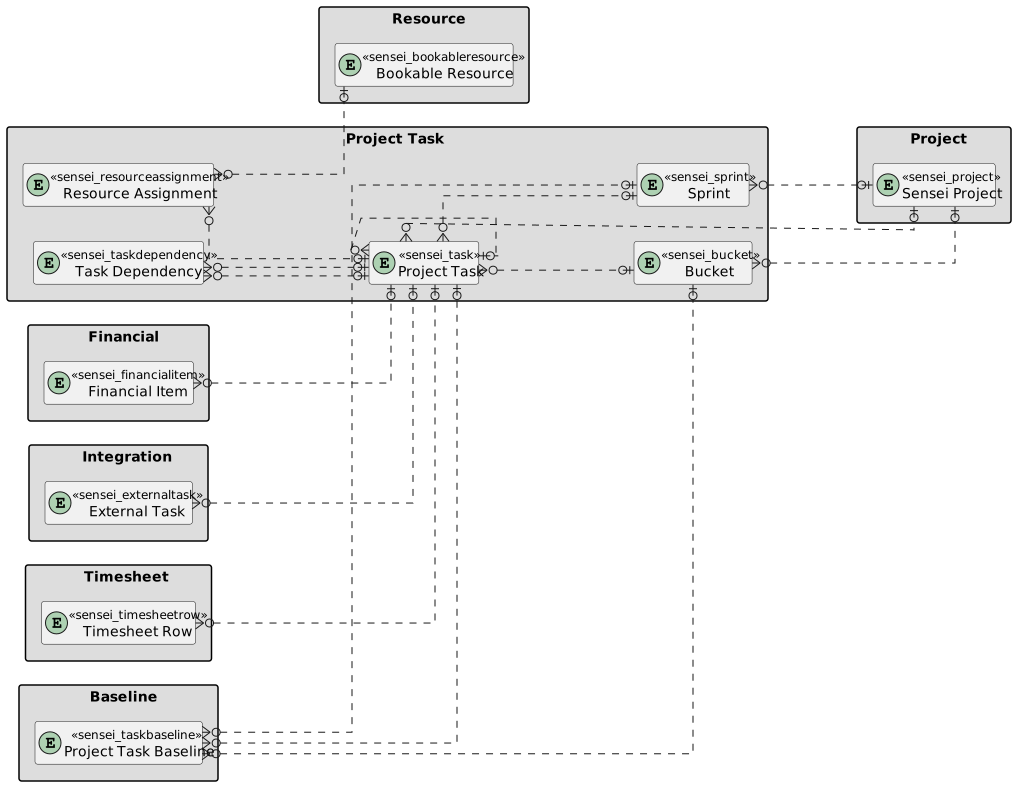
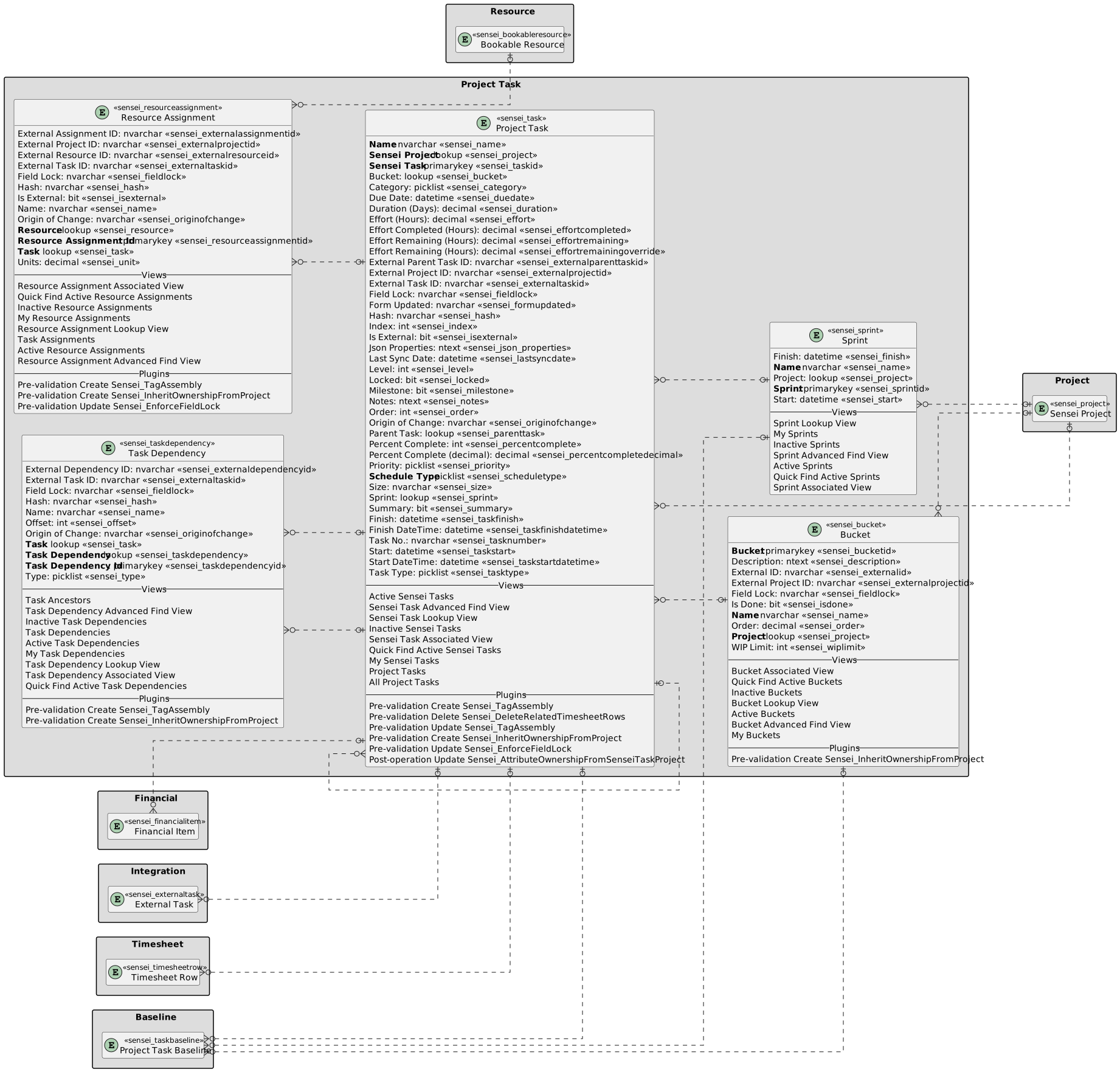
| Project Task | Project Task with fields |
|---|